 Bookmark this on Delicious
 Recommend to StumbleUpon
You may find that the database included in OpenOffice delights you as much as it has me. This page tries to help you use it.
Remember that Open Office, including ooBase, is free. Don't let that fool you, though. Big organizations, governmental and civilian, have adopted it as their standard office suite... and saving million$, but still Getting The Job Done. And making things easy for users on different platforms... Linux, Mac, Windows all spoken here!
There's more about ooBase in the main index to this material. Adabas? Star Office? Ancient history.
This page is "browser friendly". Make your browser window as wide as you want it. The text will flow nicely for you. It is easier to read in a narrow window. With most browsers, pressing plus, minus or zero while the control key (ctrl) is held down will change the texts size. (Enlarge, reduce, restore to default, respectively.) (This is fully explained, and there are more tips, at my Power Browsing page.)
Page contents © TK Boyd, Sheepdog Software, 2/06-5/09.
This "How To" attempts to explain something that many people seem to want: A way to use lookups on forms. For the sake of illustrating both the question and the answer.....
Imagine a very small police force... let's say it is in charge of a island in the Caribbean.
It wants to keep track of motor vehicle incidents.
The details of the tables and the relationships in the database for this job are contained in a separate webpage, which you ought to go off and read now, if you are not familiar with it. There's a link there for downloading the database, too.
What the Chief of Police wants from his IT person is a simple form so that when a person is involved in an incident, the chief can quickly, easily, get a list of all the incidents in which that person's been involved. The chief wants a form with two lookups... one for first name, one for surname. If he selects "Jane" from all the firstnames on the island, the second lookup is re-populated so that it only holds surnames for which there is a Jane. When he selects Doe (having previously selected "Jane"), he should see (in a datasheet on the form) all of the incidents Jane has been involved in. (We will assume that every car has only one owner.) (The "incidents" lookup isn't achieved until the second tutorial on this topic.)
Yes... the schema (design of tables and their forms) described on the other webpage is more complex than we need for our immediate wants... at least those stated so far. But it will serve us well as the basis of other database tutorials.
In this tutorial we will end up with a form which has two datasheets on it. One will list the firstnames which occur in the database, each firstname being listed only once. On selecting one of those, we will be rewarded with the second datasheet filling with the full names of just the people with that firstname.
Our sample People table holds the following names:
We'll do something simple, first... to make a start...
We're going to create something with two datasheets, even if, at first, it is imperfect.
We will create this with the form wizard. In a nutshell....
Step 1: Source: People table.
   Arrange for...
   People.FName and People.SName to be in the form.
   Move "FName" to the right hand panel first In this step, and in step 3.
Step 2: Invoke "Add subform", "Based on manual selection"
Step 3: Be sure you are selecting fields from the "People" table. and put the same fields as before on the subform
Step 4: Put "Fname" both in the "First joined subform field" and in the "First joined main form field."
Step 5: Datasheet for both form and sub-form
Step 6: Set to display all, but not allow any modifications, addition or deletion.
Step 7: Any style
Step 8: Call it "Simple Selector"
That gives a "working" result we can study. You may want to re-size the window to see both tables. You can do that (and adjust the size or placement of the controls on the form) in the usual way whenever you have the form open in the design mode, i.e. open for editing.
The reason we told the form wizard to disallow any changes to the data is that sometimes when your form isn't yet working properly, you can corrupt the data in the table. In a "finished" database, you would of course implement a way for users to change the data... but this form is for looking up data, not entering new data
Given our small universe of people, don't miss the magic: The second worksheet fills with....
Jane Doe
Jane Seymour
... if you select either "Jane" line in the first worksheet.
Close the form. Reopen it in Edit mode. Right click on the "Sname" column heading in the first datasheet. Click "Delete".
Already, the form looks more reasonable.... but in the first datasheet we have Jane twice and Jeremy twice... a little inelegant, don't you think? And, of course, we have all of the fields showing in both tables. The latter issue is easily dealt with: Go into Design Mode, right click the FName column heading, click "Delete column".
We are also going to fix the repeated display of any duplicated first names. We're going to do it two ways. Both require that you become aware of tricks for getting to parts of ooBase others sometimes never reach.
We're going to do it first by using a query to populate the main form's MainForm_Grid. Then we're going to revise our form to display what we want (up to a point) without using a query.
Sadly, here we enter a section of this tutorial littered with little asides, explanations of details, etc, etc. Hang in there! Things soon get better.
First, before anything happens to it... Save your form "Simple Selector", and close it. Make a copy of it called "SelectorByQuery", and open that for edit. (You make the copy as follows... Go to the ooBase main project manager window. Click on "Forms" in the left hand column. Right click on "Simple Selector", click "copy". Right-click in the "Forms" pane. Click Paste, and edit the name.)
Leave that open, but before we can do our form by a query, we need the query!
Go back to the ooBase main project manager window. Click on "Queries" in the left hand column. Click on "Create Query in SQL View. Enter....
select distinct "FName" as "FName" from "People"
... in the disconcertingly empty window that opens. (The SQL command "distinct" does the magic here.) (The names of fields and of tables are case sensitive. The SQL reserved words... "select", "distinct", "as", "from", may be entered in wHAt Ever caSE You WAnt... but I would suggest using lower case.
IMPORTANT THING: (I spent about two and a half hours finding out about this...)
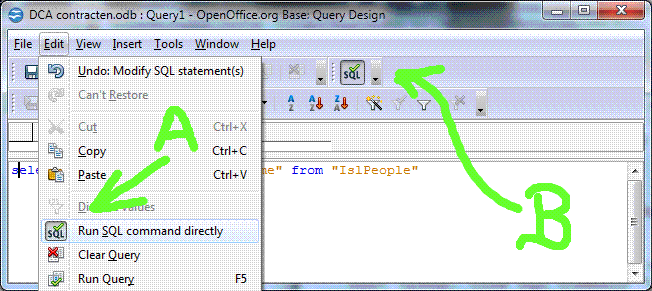
IF YOU WANT THE QUERY to work for what we want it for, you must be sure that the system will run the SQL "directly". (You can change the setting later, if you mess up. But the setting has to be right before the query will do what we want it to.)
There's an entry in the query designer's "Edit" sub-menu to "set" (or "unset") this behavior. You want the "button" down. The image below shows both the menu entry, and the "button" in the required state, at "A". (I'll explain the "SQL" at "B" in a moment.)
The "SQL" button at "B", which you turn on and off with "View | Toolbars | SQL", is, OpenOffice 3.5.1, running under Windows 7, to my way of thinking a little flaky. It does "work"... just not as I would expect it to. It is an alternative to the setting mechanism marked "A". If you click on it, it does turn "Run SQL directly" on and off... but you can only see the result of your click after you move your mouse pointer away from it. (When you click on the button when it is down, it doesn't show that it is now up until you move the mouse away from it.
What is this "run directly"? I believe it bypasses some checks or code which Open Office would use, and passes our SQL on unchanged. This is BAD, because some checks are skipped... but it is GOOD because it allows us to use parts of SQL... a "big" entity... which Open Office has not (yet) incorporated into everything it does for us. (I believe the SQL key word "distinct" is the reason we need to have the system run our SQL directly.)
(While "Run SQL directly" is invoked, you cannot use the Open Office "design view".)
Coming up for air, briefly, between digressions....
Save the query as "DistinctFNames".
(Another digression, sorry: Somehow between when I first wrote this, and when I saved the version of the database you can download, an...
as "People"
got itself added to that. I'm not sure when, or how, nor whether it matters! Sorry. But I thought I'd at least mention it so that if you notice when looking at the downloadable version, you would know. I'd be inclined to put it in... but while that may "fix" the things I was looking at when I discovered it, it may "break" things I didn't check. Let me know what you discover!) (While you are at it... see if you can figure out why when I had two "identical" versions of this database side by side on my screen, I could get that change to "stick" in one... but not in the other!! It may be connected with my difficulties in some circumstances with making my choice for "Analyze SQL command" (yes or no) to "stick" in the Data tab for the Form Properties of the query based form we are discussing here.)
The "Run Query" tool (Green tick) will add a preview pane to the window. (If you've entered valid SQL!) You should see a list of the FNames, but without duplications.
I'm afraid that the ooBase query wizard can't give you "complex" queries such as the one we've done with "distinct". You can use it to "rough out" a query, and then invoke "Edit in SQL view, if you wish.
Now go back to the edit window for your form "SelectByQuery".
(We are done with annoying digressions into important details, I'm pleased to say.)
Open the form navigator. (There's a button for it, probably on the bottom edge of your screen.... As long has you have View | Toolbars | Form Design ticked. Don't confuse the form navigator with the more general "Navigator". (I have a short introduction to the form navigator for you.)
In the form navigator, right-click on MainForm, then on Properties. Click on the Data tab.
Change Content Type to Query. Make Content "DistinctFNames", using the drop-down list, and run your form... you should see the first names (without repeats) in the first data sheet, and the second should display all people with whatever first name you select. Select Jane or Jeremy, and you see multiple individuals, if you have populated your tables as I suggested.
Ta! Da! We did it (the first way.) Have you been into raw SQL before? The wizards take care of lots of things.... but raw SQL lets you do more.
Tidy up by closing everything but the ooBase main project manager window.
Select Forms in the left hand panel again, and copy SimplSelector to SelectWithInternalSQL, as you copied SimpleSelector to SelectByQuery a moment ago.
Open that for edit.
Change the Content Type entry on the MainForm's "Data" tab to "SQL Command". Make the Content....
Select distinct "FName" as "FName" from "People"
... and run your form. You should again see the first names (without repeats) in the first data sheet, and the second should display all people with whatever first name you select. Select Jane or Jeremy, and you see multiple individuals, if you have populated your tables as I suggested.
Ta! Da! We did it again... a more elegant way.
BUT.... (could nothing be simple??? for THIS approach to work, it is vital that "Run SQL Directly" is not invoked! And making the setting may cause you to tear your hair, because a few things "interlock".
Get yourself to the Data tab of the MainForm properties. After you have set "Content type" to "SQL command" you will be able to enter text in the "Content" box just below the "Content type" box. It may be easier, and you may need to do it in a moment anyway, just to click the "..." to the right of the "Content" box.
That will take you to an editor for the Content.
The syntax highlighting offered by the SQL command design window is one reason to use it, rather than typing directly into the "Content" box. (If, for instance, you forget the quotes marks ("fieldname") around a fieldname, for instance, the color may alert you. Ditto if you mis-spell a SQL key word.
In addition, you will have access to the two ways discussed above for changing the setting of the "Run SQL directly" option....
As long as you're not in the Open Office "Design view"... in which case the ways to change the "Run SQL Directly" will be absent or grayed out.
Remember the odd twist. (At least if your query has "Distinct" in it.) Using an external query? Turn "Run SQL Directly" ON. Using a line of SQL embedded in the form's properties? Turn "Run SQL Directly" OFF.
Don't ask me why... sorry. I'm just the messenger. Please don't shoot me!
That seems to be enough for this tutorial. In the next tutorial, we will look at a similar form, but using drop-down lists instead of datasheets to display the names. We will add a datasheet displaying the incidents a selected person have been involved with.
I dislike 'fancy' websites with more concern for a flashy appearance than for good content. For a pretty picture, I can go to an art gallery. Of course, an attractive site WITH content deserves praise... as long as that pretty face doesn't cost download time. In any case....
I am trying to present this material in a format which makes it easy for you to USE it. There are two aspects to that: The way it is split up, and the way it is posted. See the main index to this material for more information about the way it is split up, and the way it is posted.
PLEASE >>> Click here to visit editor's Sheepdog Software (tm) freeware, shareware pages <<< PLEASE
If you liked this ooBase tutorial, see the main index for information other help from the same author.
Editor's email address. Suggestions welcomed! - - - Want a site hosted, or email? I like 1&1's services.
 Page tested for compliance with INDUSTRY (not MS-only) standards, using the free, publicly accessible validator at validator.w3.org. Mostly passes. There were two "unknown attributes" in Google+ button code. Sigh.
. . . . . P a g e . . . E n d s . . . . .