 Page has been tested for compliance with INDUSTRY (not MS-only) standards, using the free, publicly accessible validator at validator.w3.org. Mostly passes.
You may find that the database which is part of Libre Office/ OpenOffice delights you as much as it has me. This page tries to help you use it.
Remember that Open Office, including ooBase, is free! But don't let that fool you. And it's not new. Big organizations, government and civilian, are adopting it as their standard office suite... and saving million$, but still Getting The Job Done.
There's more about ooBase in the main index to this material.
This page is "browser friendly". Make your browser window as wide as you want it. The text will flow nicely for you. It is easier to read in a narrow window. With most browsers, pressing plus, minus or zero while the control key (ctrl) is held down will change the texts size. (Enlarge, reduce, restore to default, respectively.) (This is more fully explained, and there's another tip, at my Power Browsing page.)
Page contents © TK Boyd, Sheepdog Software ®, 2/06-9/19
In this tutorial tries to help you move data from other database managers into Open Office Base (aka ooBase) tables. Other tutorials explain how to move data between Open Office applications and how to export data from an Open Office application for use in an external application.
You may find that you don't need to do imports... ooBase can, up to a point, work with data created by other https://en.wikipedia.org/wiki/Relational_database_management_system>RDMSs... but in the long run, you are going to encounter fewer hassles if you take the trouble to rebuild your database in ooBase.
If your interest is in using ooBase to work with Microsoft Access databases in particular, the link just given has a few notes for you... but not many at this point.
The page you are reading seems to be popular, but I am not sure what it is that draws people to it, so I've started breaking it up into more focused pages. If you will tell me what you came here for, I can concentrate editorial efforts on the parts of the page the most readers want expanded. Does the page already answer the questions you had? Etc? A quick note from you would be very welcome... you don't need to give me your email address; there's a simple little form for your convenience.
Let me mention one thing this tutorial will not show you: It will not show you how to append data from an outside source to an existing ooBase table. I prefer to do things one step at a time. If I needed to append data from outside ooBase to an existing ooBase table, I would first import that data into a temporary ooBase table, and then append the contents of the temporary table to the existing table.
Let's get started! But first I'd like to say "thanks" to JohnV at the now deceased www.oooforum.org Open Office Foru for the seed which grew into this tutorial.
(I find online forums are the most helpful source of help to me. I have a page with my current forum recommendations for you.)
"CSV" stands for "Comma Separated Values". I've produced a separate page with a general discussion of CSV files.
From long before ooBase came along, I have had a database with the names of books I've read. It was in Borland's Paradox, and recorded the title, author, the number of pages, and the year I read each book. Converted to CSV form, that data looks like....
1/15/19,"Angel Maker", "Pearson", 465, 1998
1/27/19,"Lord of the Rings", "Tolkien", 1065, 1969
2/15/19,"Lion, Witch, Wardrobe", "Lewis", 256, 1970
All those quote marks ("s) are pretty annoying, but the last record should show you why they are needed.
The first datum in each record is a date. (New to the tutorial, 10 Sep 2019. The tutorial had a major overhaul a while ago, under OpenOffice 3.1.0, and was tried again 9/19 under 4.1.6)
If you wish, as I recommend to anyone who wants to really understand all of this, to "follow along", do what is described in this essay, copy/paste that text to a simple text editor, save as TmpBooksRead.txt.
There's nothing particularly "magic" about a CSV file. It is just a text file with a little structure.
If your data is currently in a text file, we are good to go. If it is currently in a spreadsheet, your job is half done, almost certainly. (Re-open it in OpenOffice's spreadsheet ("Calc"), tidy things as necessary, and proceed from the appropriate place below.
If your data is currently in a different RDMS, Whatever it is, it should have a tool to export the data to a CSV file. Certainly Paradox does. I can't tell you too much about this part of the exercise. You'll have to get the CSV export done by yourself! If you can't get directly to CSV, you may find that your other application lets you move a table to a spreadsheet. If you can get it from there into the Open Office Calc spreadsheet somehow, then you won't need the CSV file. That is all we are going to use it for. You may even be able to skip putting your data into the Open Office Calc spreadsheet, copying directly from your other spreadsheet.
(Please understand that "simply" copying a whole database from one RDMS to another is probably never going to be possible. But you can copy the data, table by table, from one to the other, and proceed from there.)
The tab character is sometimes used in place of a comma in export files. If that is all your application offers, it is worth a try; even thus, it would probably work.
To import a CSV file into an ooCalc spreadsheet:
Open a spreadsheet. An old one will do, but a new one would be more usual for this sort of work.
You can either...
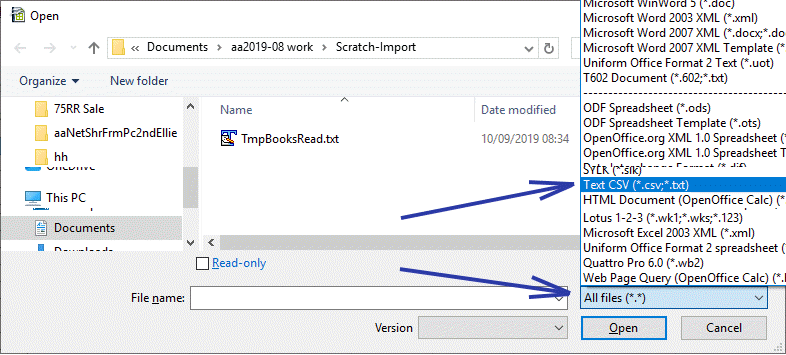
i) Open the CSV file into an new ooCalc workbook by using ooCalc's "File | Open"
....or....
ii) Open the CSV file as a new sheet within an already open workbook by using ooCalc's "Insert | Sheet from file".
(Two "details"...
... end of "details".)
When the dialog comes up to allow you to choose the file to load, double-click on the CSV file which holds the data to be imported.
In either case, you must get yourself to the fancy dialog box shown below. At the bottom of it you should see a datagrid. It will probably already hold a fairly good "shot" at the table you want...
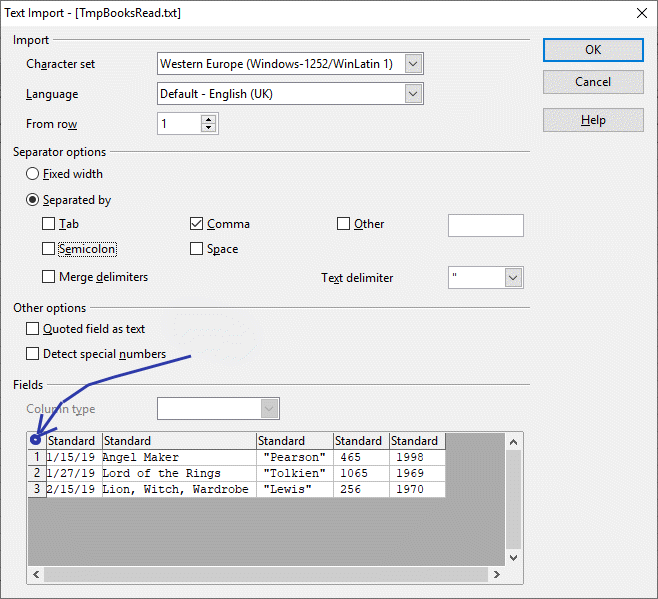
... but you will probably have tweak some of the choices. (I'll explain the bent blue arrow in a moment.)
If things are "bunched up", e.g. if you were importing my "books read" data, and the datagrid has something like...
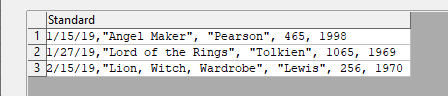
... all in one column, then look at the "Separator options". As you change them, you should see the data distribute across the columns differently.
When things are looking pretty good, take a close look. Are things like "Lion, Witch, Wardrobe" being SPLIT across three columns? If so, you need to fix the "text delimited" setting. In the example above, we used commas for "Separated by", i.e. the field separator, and the quotes mark (") for the "Text delimiter". (In which case, commas inside a pair of quotes are "hidden", and not used to split "Lion" and "Witch" and "Wardrobe" between three columns. Even Baldrick would concede that's "cunning".
Once you've got those settings right, i.e. things are being sorted into fields properly, look at the data you are importing. Are any fields with only digits NOT numbers? For instance, you might have a "serial number" or "telephone number" field. While the serial "number" 529526 is made up of digits, it is not a number in any serious sense.... and serial number "00023" will get converted to "23", which you may not want. Also, you're never going to do arithmetic with a telephone number, so don't let the automatic data typing declare that field numeric. Set the column type of such fields to "text".
Some odds and ends...
I haven't addressed the "Link" tickbox which arises if you use "Insert | Sheet from file". I'm not going into detail, but I'll advise you to keep your life simple: Leave that unticked. Ticking it creates some "magic", but magic you may like as much as the sorcerer's apprentice liked the magic he unleashed. With the box unticked, you'll import the data as it is at the moment in the CSV file concerned. By ticking the "link" box, if you know what you're doing, and you do it right, the information in the worksheet you are creating will stay in sync with the CSV file you created it from.... even incorporating changes to the CSV file made AFTER the worksheet was created. But get it wrong, and changes which you thought would percolate though don't, and you are working with bad data....
Click "Okay"! The spreadsheet should fill with the data, nicely set out in a grid, like an ooBase table.
Do not close the spreadsheet.
Remember that "a database" may consist of several tables, forms, queries, reports. What you may think of as "a database" may merely be a table.
You are merely creating a new table. Either open an existing database, or, if appropriate, start a new database in the usual way. If starting a new one, select "Register / Open database", but do not select "Create tables with wizard". I created a new database and saved it in....
C:\My Documents\FreeDB\FDB006\
...as FDB006.odb
So... remembering that "database" and "table" are different things (one database can have multiple tables within it), now that you have either opened an old database or created a new one...
Go back to the spreadsheet holding your data. Insert a row above the top of the data. Type column names into the new cells. The the contents of these cells will be used to name the fields. That left me with...
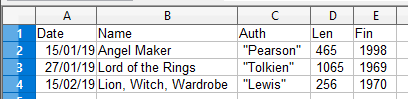
Select all of the data, and the row of cells with the field names. (Ctrl-A is the easy way to do this. Don't be alarmed by the fact that the whole sheet gets selected.... unless you have "stuff" on the sheet besides the data (and headings).)
Press Ctrl-C (Shortcut for copy)
Go back to the database. Select "Tables" in the "Database" pane.
Right-click in the "Tables" pane. Click on "Paste"
Select "Definition and Data", if it isn't already selected.
Be sure "Use first line as column names" is ticked.
If you can use one of the columns for the primary key, leave the "Create primary key" item UN-ticked. Otherwise tick it, and the software will add a new column, with an automatically incrementing number supplied as the record's primary key field. In my example, I am going to use the first field, the date, as the primary key. (That will depend upon me never finishing two books on the same day. Primary key values must be unique across all of the records in the table.)
Be sure to tick "Create primary key"... unless there is a column in the spreadsheet with suitable data in it already. Every value in the column must be unique, for the column to be "suitable". (Ticking the box for "create primary key" will add a field to your database. If in doubt, use Base's offer to create a primary key, i.e. tick the box. Make the name for the primary key something sensible. (The default "ID" is often just fine. Be sure that whatever name you ask it to use isn't a name already present in the headings you gave the spreadsheet's columns.)
Click "Next". That should give rise to...
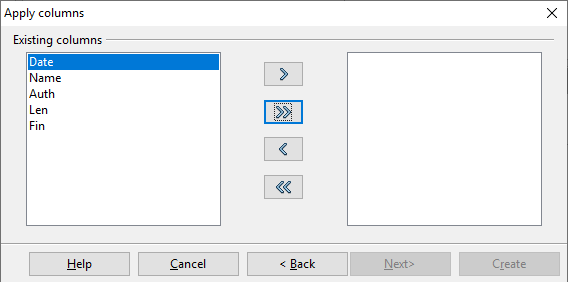
The "Apply columns" page lets you decide which columns you want in the new table. You will probably want them all, and the >> button allows you to have them easily. You can delete superfluous columns later easily; you can't add missed columns easily.
A Type Formatting page arises... you can almost just click "Create" for now... you can get back to these later. On the other hand, when you are more proficient, doing it now might be a better idea in some ways.
But! If you are using one of the fields you are importing for the primary key, right click on it...
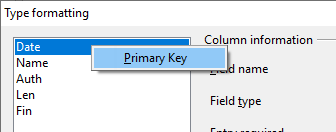
.. click "Primary key". A little key icon should appear in front of the field you have chosen to be the primary key.
In the "Type formatting" page, you may be able to leave most things unchanged. Note that in this dialog, you are setting properties for each of the fields in the table. As you change the field selected in the left hand column, you see that field' properties in the rest of the dialog box.
Setting the data type properly is especially important. If you have any numerical data with which you want to do arithmetic (for example, a "price" field in an inventory system), it would be best to change the field type for those fields. However, as explained earlier, you will probably want to use one of the "text" types for serial "numbers", etc.
Be careful if you decide to try to make any changes to the primary key field. If you aren't sure that you know what you are doing, it would be best to leave the settings as ooBase made them.
If you specify too few characters for a text field, then any records which are too long will trigger a message during the "create table" phase, and I'm afraid the records are just dropped. You can use the database's ID field's value as a guide for finding the lost records in the spreadsheet copy of the data.
If you have some numbers which are not integers, for instance amounts of money, the type which would work for me was "Decimal", AND I had to raise the number of decimal places above the default "0".
If you have dates to import, they are probably going to be their own special sort of nightmare.... the usually are, anyway... across all applications! But they "should" work, and sometimes will. Experiment, but check your data imports carefully! Among other things, be sure that 1/2/2006 comes out the way you want it. 1st of Feb or 2nd of Jan? It can mean either, depending on what part of the world you are in, and computers get confused. Having said all of that, I should add that I have seen dates work... with a following wind!
Click "Create", and, after a moment, your table should be done. Double-click on its name to open it.
(My thanks to the helpful reader who wrote in to point out that there is one more chore you should probably do. (Don't worry about the "probably". If it isn't appropriate to your precise circumstances, you can revise the setting later.))
If, as is likely, your primary key is an integer, you may well want Base to take care of entering the values for you. You wouldn't even need to display the primary key on data entry forms, if it is a meaningless value. ("integer" is the common data type the following applies to. A few others, with "integer" in the name, mainly, also allow you to set an "AutoValue" property true... but you won't find it on offer for many data types.)
Select "table" in the upper left hand pane of the main Base database management screen. Then right-click on the name of your file in the right hand pane, open your database in edit mode. Click on the entry for the primary key. Look for an "AutoValue" property. If there isn't one, consider changing the data type for your primary key field. Set AutoValue to "yes", for easy data entry, when your primary key isn't something with inherent meaning.
- - - - - - - - - - -
That wasn't too painful, now, was it? (Unless dates were involved!)
You are welcome to use the material here free of charge. But if you want to show your appreciation, you easily can make a gift to me or contribute to a charity I would like to help... I've listed several to choose from. (The link will open in a new tab or window.)
This is one of at least four pages discussing CSV files in my ooBase tutorials. In this page, you were shown how CSV files could be used to import data from external, non OpenOffice applications.
... and of course there's also the site's main menu!
I dislike 'fancy' websites with more concern for a flashy appearance than for good content. For a pretty picture, I can go to an art gallery. Of course, an attractive site WITH content deserves praise... as long as that pretty face doesn't cost download time. In any case....
I am trying to present this material in a format which makes it easy for you to USE it. There are two aspects to that: The way it is split up, and the way it is posted. See the main index to this material for more information about the way it is split up, and the way it is posted.
PLEASE >>> Click here to visit editor's Sheepdog Software (tm) freeware, shareware pages <<< PLEASE
If you liked this ooBase tutorial, see the main index for information other help from the same author.
Editor's email address. Suggestions welcomed! - - -
Page has been tested for compliance with INDUSTRY (not MS-only) standards, using the free, publicly accessible validator at validator.w3.org. Mostly passes.
AND passes...

. . . . . P a g e . . . E n d s . . . . .